What to do with leftover tokens: a Home Assistant wall dashboard for Android, in a week
What do you do if you have tokens left at the end of the day?
You start a little custom Home Assistant dashboard for Android. Android is a platform I had never touched in my life. But building dashboards in the Lovelace GUI was a bit cumbersome, and mostly it wasn’t very reliable. We have five cheap Xiaomi Redmi Pads on the walls, running the dashboard in a kiosk browser (Fully Kiosk; I had to look up what that even is). Kiosk mode, the WebView, the screen timeouts, the “why is this one white again”…
So I asked Claude Code for a native app instead. One WebSocket to Home Assistant, Kotlin and Jetpack Compose, no WebView. The whole brief was:
Is there an android sim so I can see the app in a browser? I assume you can install the dev env on Juna? Call it PierView, create a folder in code and a repo on forge, private, etc etc. Work away until I can see a first rough version asap.
How hard can it be?
Then I fell down the rabbit hole, because it turned out to be easy. Not “easy” as in no work. Easy as in: you say what you want in a sentence, and an hour later it’s on all five tablets. So I kept saying what I wanted.
One week later:
| First commit | 15 October 2026 |
| Commits | 539 (161 of them on the busiest day) |
| Pull requests | 158, each with green CI before merging |
| Releases | 30, all self-installed by the tablets |
| Kotlin | ~56,000 lines of app, ~17,000 lines of tests |
| Android experience going in | none |
It’s called PierView. Here’s the best of it.
It’s still a dashboard#

First and foremost it does what the old dashboard did: one view per room plus an Overview and a Health page, swiped like a carousel. There are tiles, lights, blinds you can watch going down at the blind’s real speed, aircon dials you drag, and media cards. When nothing is playing, the media card is a drifting wall of album covers. Every state change shows at once and rolls back with a little shake if Home Assistant disagrees.
Day and night look different, and not just “dark mode”:
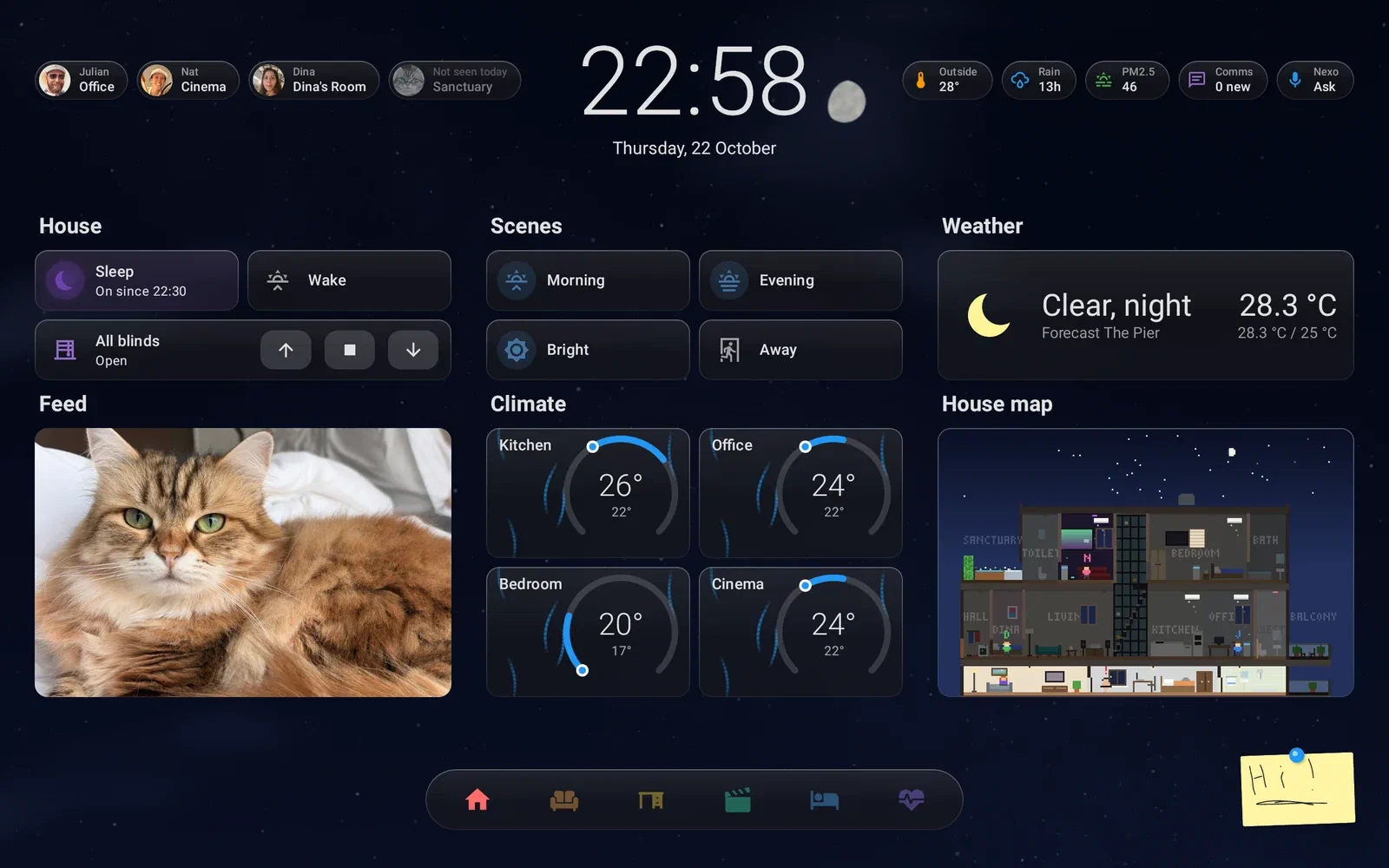
The sky behind the cards is the real sky. The sun and moon sit where they actually are over the flat, with the moon in its real phase (earthshine included). At night there’s a twinkling starry sky with the Milky Way and a shooting star every forty seconds or so. By day you get Perlin–Worley clouds lit from the sun’s side, rain, gentle thunder, haze when the PM2.5 is bad, and fog.

Tap the weather pills and you get Singapore. The island is embossed, NEA’s five regions are tinted by their PSI, and you get the two-hour forecast and station readings straight from data.gov.sg:

The settings live in the card#
This is my favourite boring feature. Long-press anything and you get its details: controls, a 24-hour history and, for the household, the house’s own settings for that thing, right there.
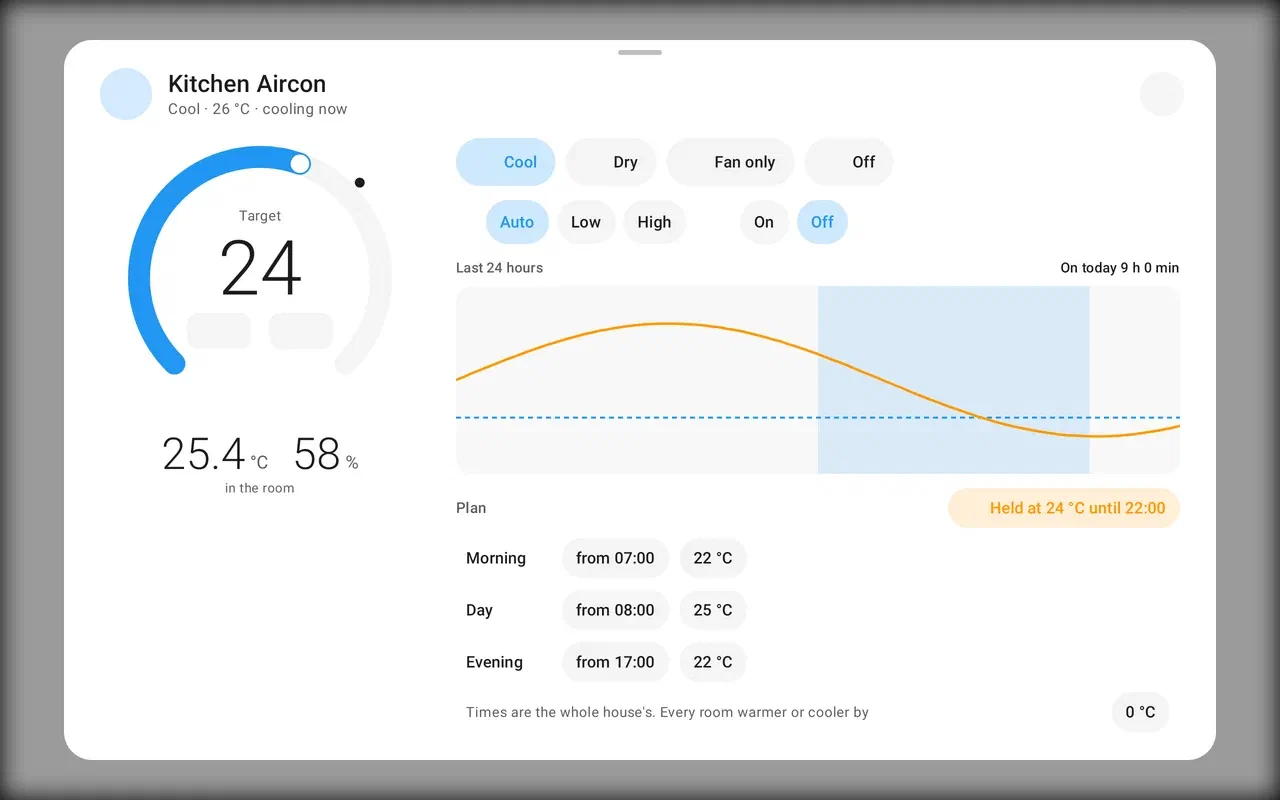
The aircon’s Plan (morning, day and evening temperatures) is the same setting the automations read. It sits right under the dial instead of three menus deep in some YAML. Lights show their automatic behaviour, and blinds show their times. Whose settings you see follows the face in front of the tablet. Changing someone else’s needs the admin password, which Home Assistant checks.
Messages, doodles and calls#
Tap the Comms pill and a sheet grows out of it. Message goes to people (their phones) and to rooms (read out on that tablet) at the same time. It types on PierView’s own keyboard, never the Android one.
Draw turns the same sheet into a sticky note you can doodle on and “stick” onto another tablet:

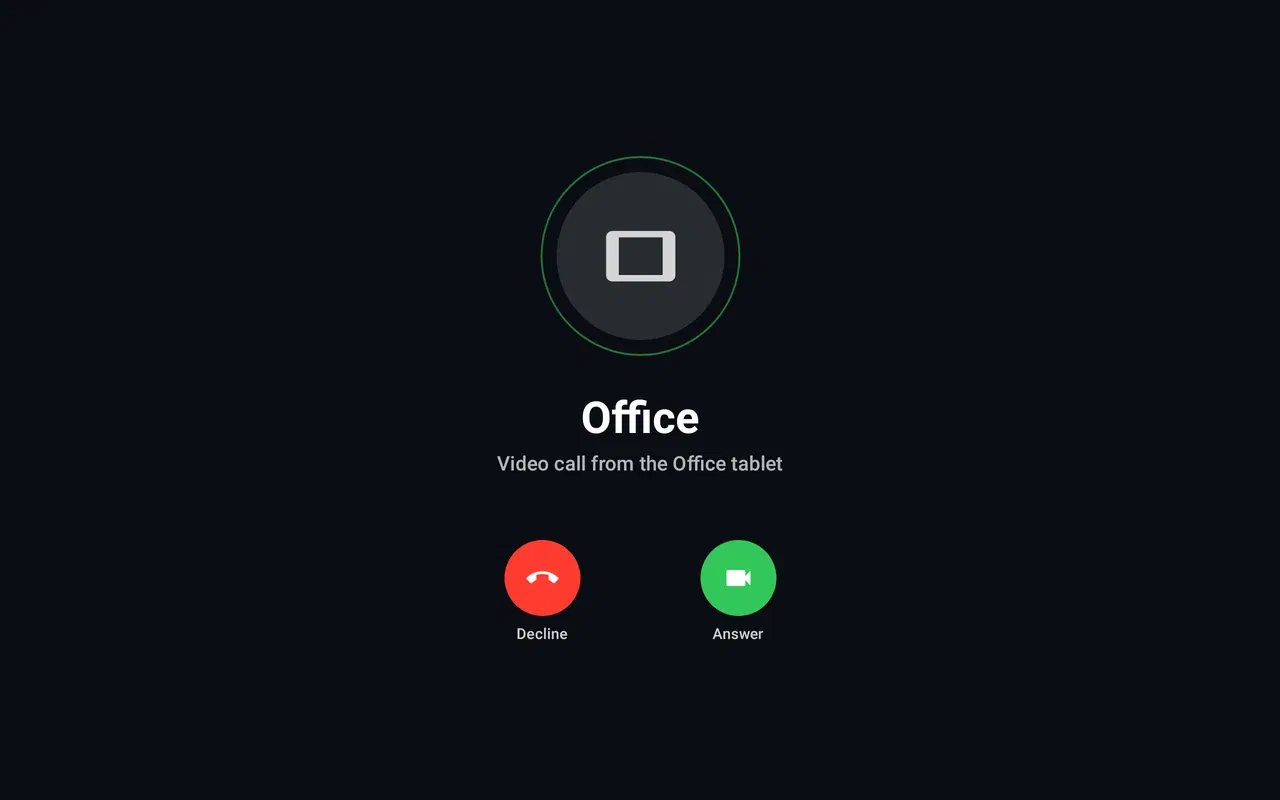
Replies from a phone fly in as little paper planes and stick to that person’s pill until you open them. Call is a video call to another tablet over our own LiveKit server, with Home Assistant as the switchboard. Some rooms answer at once, like an intercom (never the bedroom at night).
There’s also a Nexo pill: tap it and talk to our house assistant through Home Assistant’s Assist pipeline. The answer is written out as it arrives and read aloud.
It knows who’s looking#
Every tablet has a front camera, so it might as well use it. Face recognition runs on the tablet itself. MediaPipe’s BlazeFace finds faces: from about 1.2 m in the full frame, and down to about 3 m with a second, magnified look. MobileFaceNet then turns each face into numbers. No picture leaves the tablet. Home Assistant keeps one face list for the whole house, synced to all five tablets and the doorbell, so a face registered at one tablet is known everywhere. A confident recognition is kept as a new sample, so each tablet slowly learns its own light.
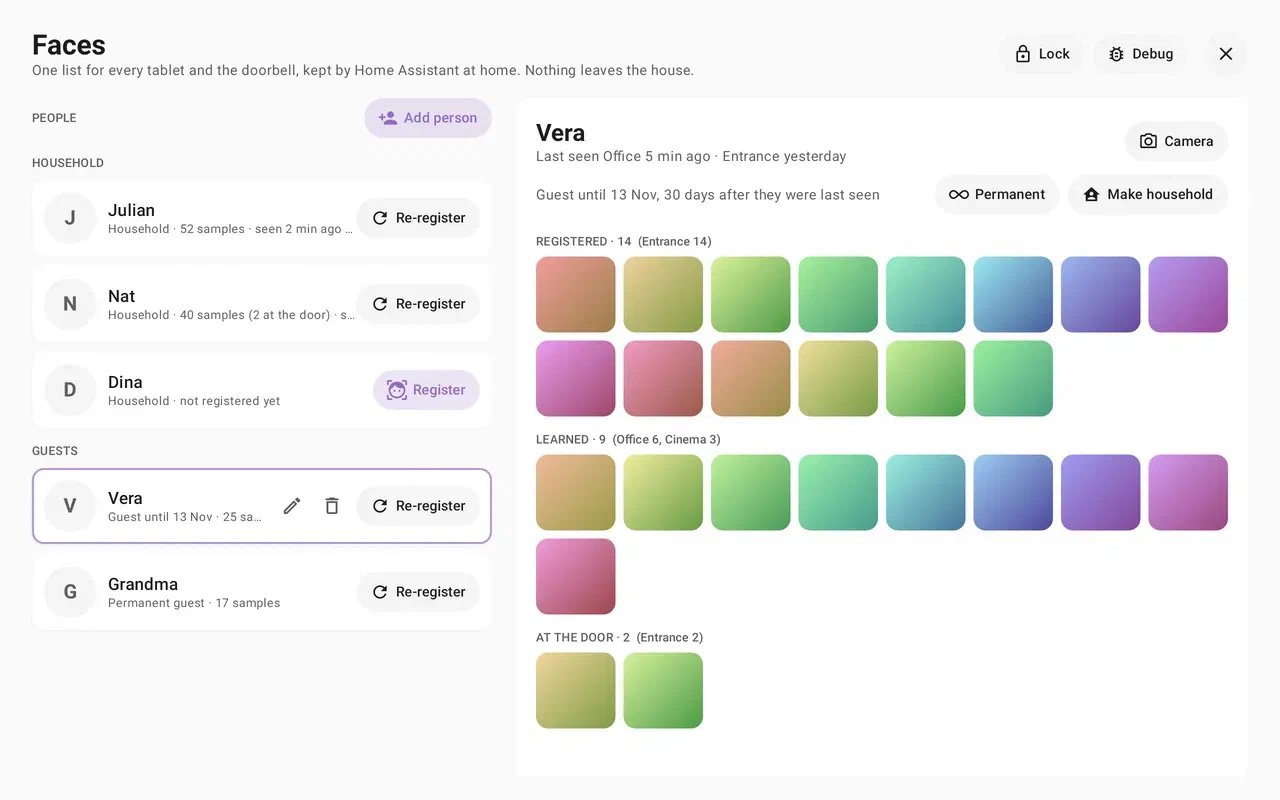
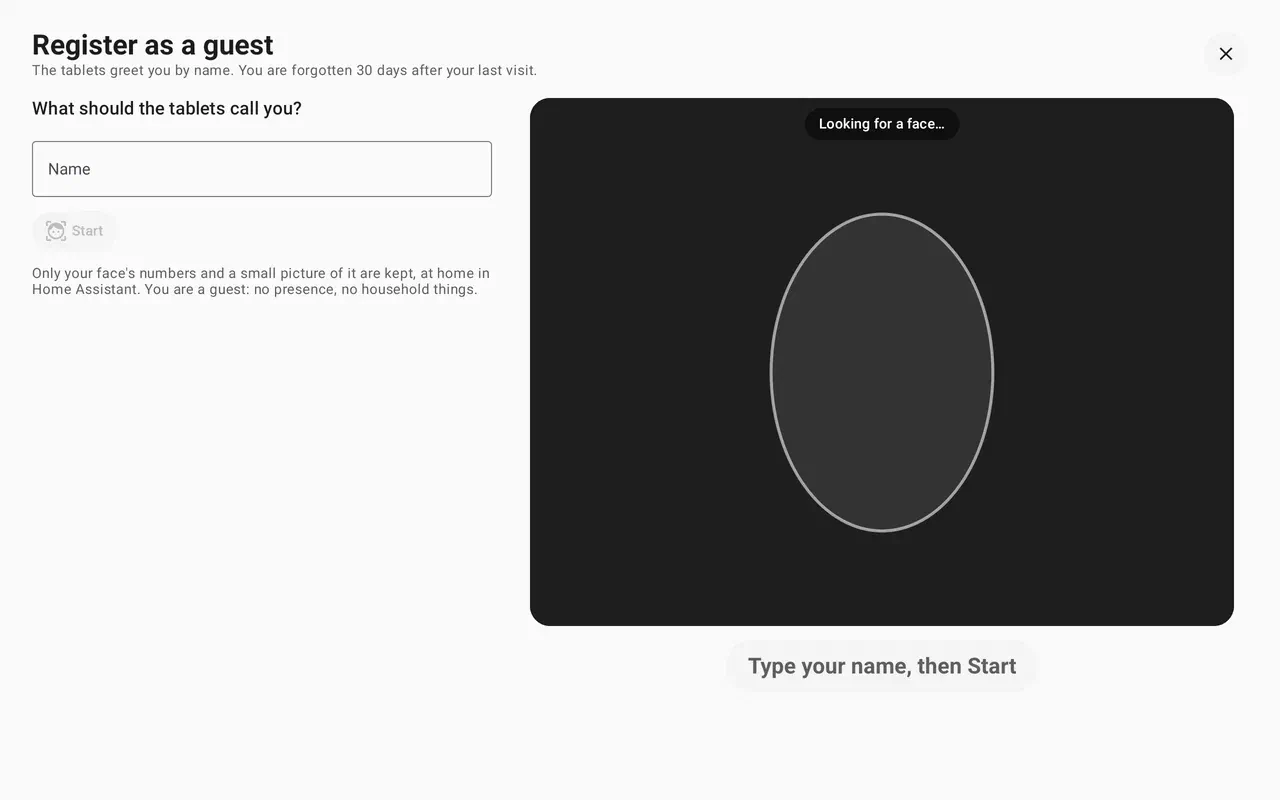
Walk up and the screen wakes: by day, at least. At night a face only makes the red clock glow a little so you can find your way. Your pill in the header lights up while you’re in front of it, and the tablet can jump to your own tab. Guests register themselves: type a name, turn your head left and right, done. They’re forgotten 30 days after their last visit unless someone makes them permanent.
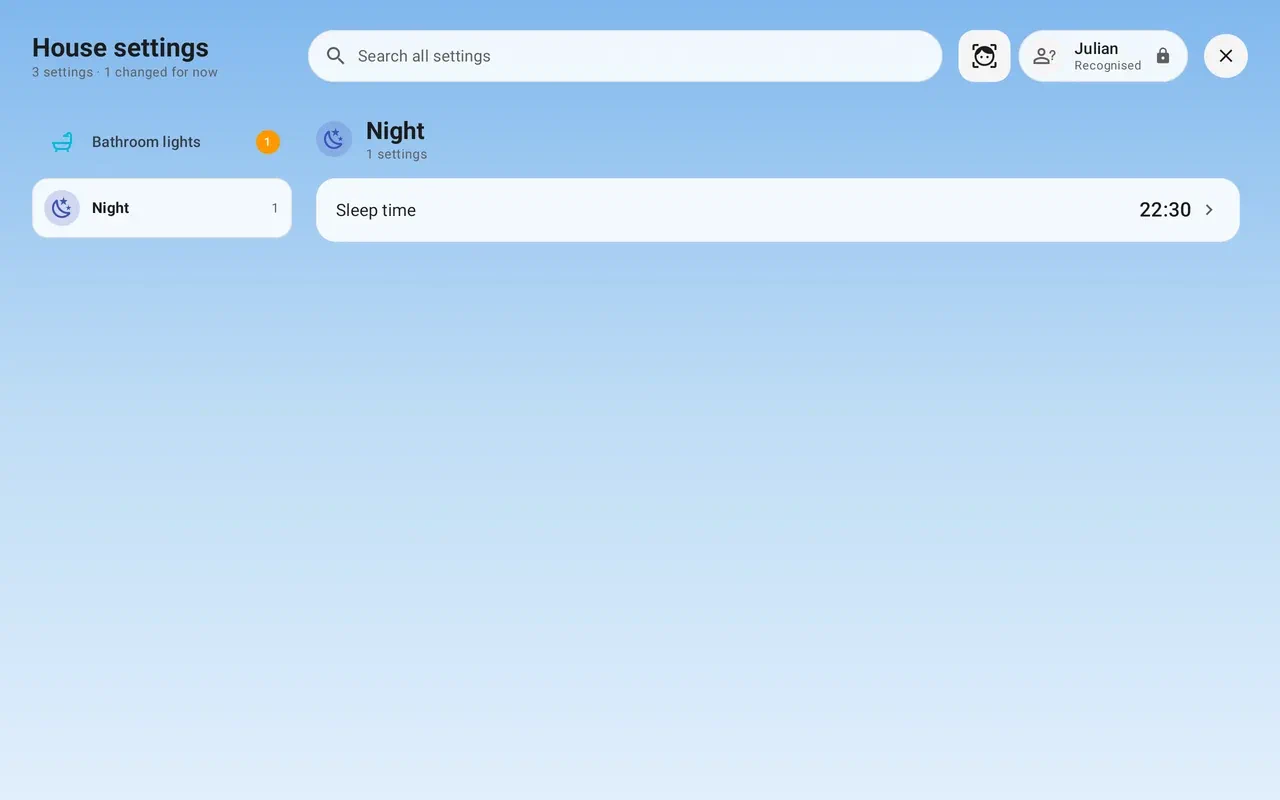
That’s what makes the individual settings work. Many house settings have a per-person version (“Just for Julian”), and the settings screen and the card details show the one for whoever is standing in front of the tablet. A voice note left “for Nat” only opens when the tablet recognises Nat. The morning briefing is per person. Unlocking the front door is offered only to a recognised household face, and then it still asks for the password.
A window, not a screen#

The same camera also tracks where your head is. The sky behind the cards shifts with it by about two millimetres, the cards a hair, and the header and tab bar a hair the other way. It reads like looking through a window instead of at a screen. It’s subtle on purpose: the clip above is a real-size crop. Your head position never leaves the tablet, and it switches off at night and when a sheet is open.
Five more cameras in Protect#
The front cameras are also cameras in UniFi Protect. Each tablet runs its own small RTSP server and an ONVIF service, and announces itself with WS-Discovery, so Protect finds all five as third-party cameras. The picture is 720p, from the hardware H.264 encoder through an OpenGL pass that turns it upright (the tablets hang sideways). The tricky part: one camera serves two users. Face recognition and the Protect stream share one camera binding, and the stream keeps running behind the screensaver and with the screen off. When a tablet gets warm it steps down to 10 fps, and to 5 fps when it gets hot. The login and the stream quality come from Home Assistant.
Where’s Odette?#
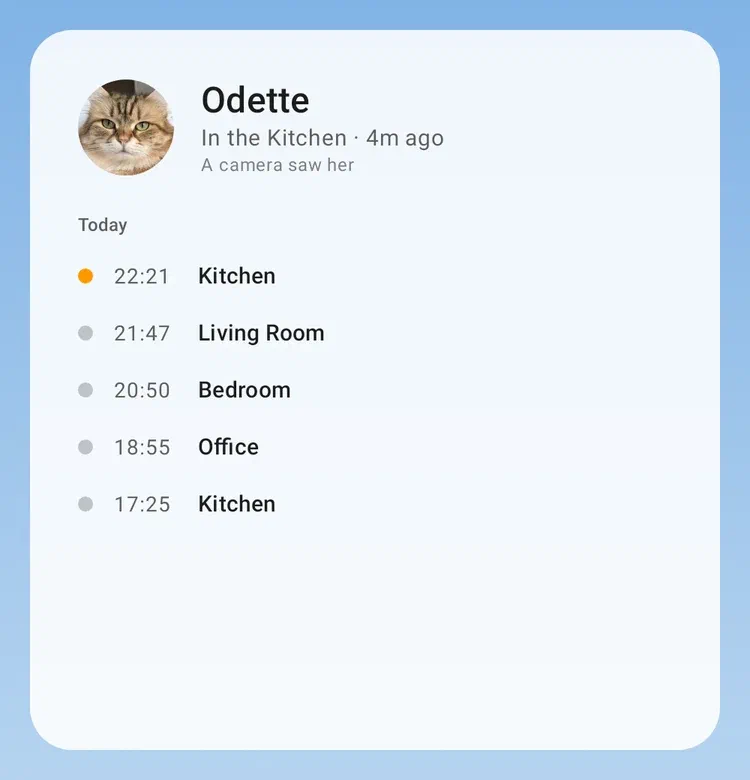
Odette is our cat, and she has a pill in the header next to the people: her face, the room, and “12m ago”. Tap it for today’s sightings by room. Two sources feed it. The Protect cameras report through a small bridge. And every tablet runs an object detector (EfficientDet-Lite0) on the frame whenever something moves in front of it, and reports “a cat, here, 0.74” to Home Assistant. Only that line goes out, with no picture, box or crop. Home Assistant turns all of it into sensor.odette_room, and the pixel house (below) shows her walking about in that room, curled up once the sighting gets old, and gone after twelve hours, because the map doesn’t guess.
Mochi and Kopi#
At some point the house got pets. There are six of them, all Singapore snacks: Mochi (a rice cake with a leaf), Bao, Kaya, Ondeh, Kopi (coffee brown with a crema swirl) and Tofu.
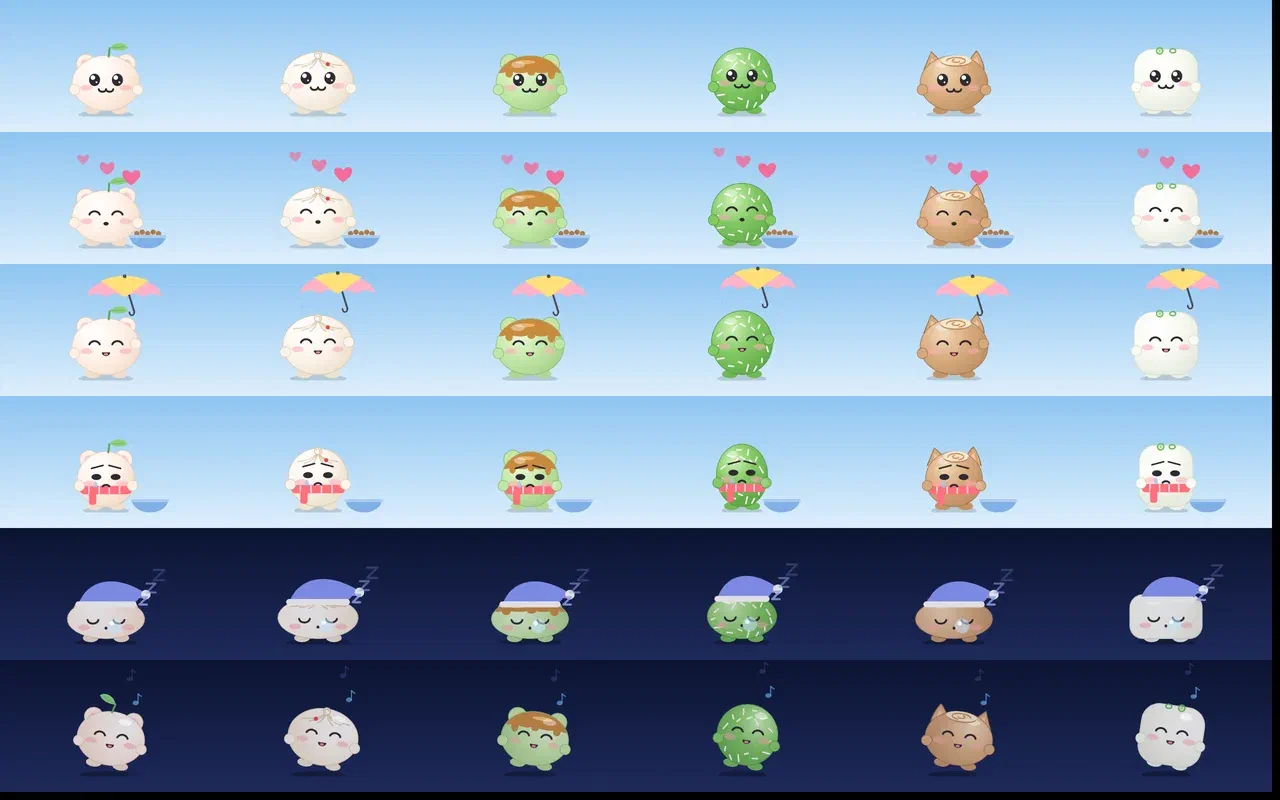
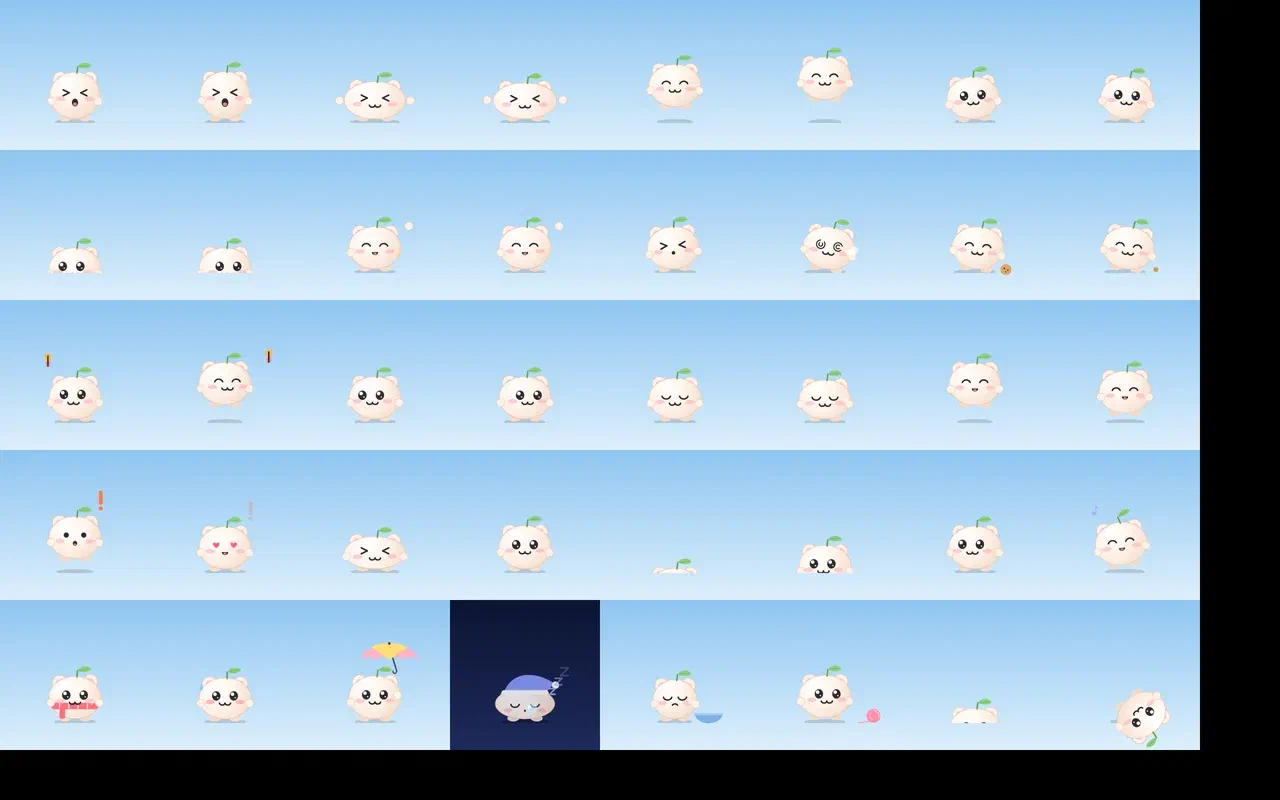
They live on whichever tablet has people at it, and walk off one tablet’s edge and in at the next room’s. Home Assistant keeps track of where each one is and how it’s feeling, so all five tablets agree. Tap one and it eats from its bowl with little hearts. In thunder it hides in a box. When it’s humid it pants. Leave it alone for four hours and it goes thin and teary next to an empty bowl. Guilt as a feature.

The way to the screensaver#
After 90 seconds without a touch the tablet goes to its screensaver. Just fading out would be boring, so it picks a way there. Half the time it’s Ms. Pac-Man: the cards become the maze walls, and she eats the pills, the headings and the tab icons, then the clock last as her power pellet, while the ghosts chase her along her trail.

Otherwise it’s Space Invaders: the dashboard is the fleet, and a laser cannon shoots it apart from below.

Or Tetris: the cards break into tetrominoes, and an actual Tetris AI (El-Tetris weights) stacks them in the well and clears lines.

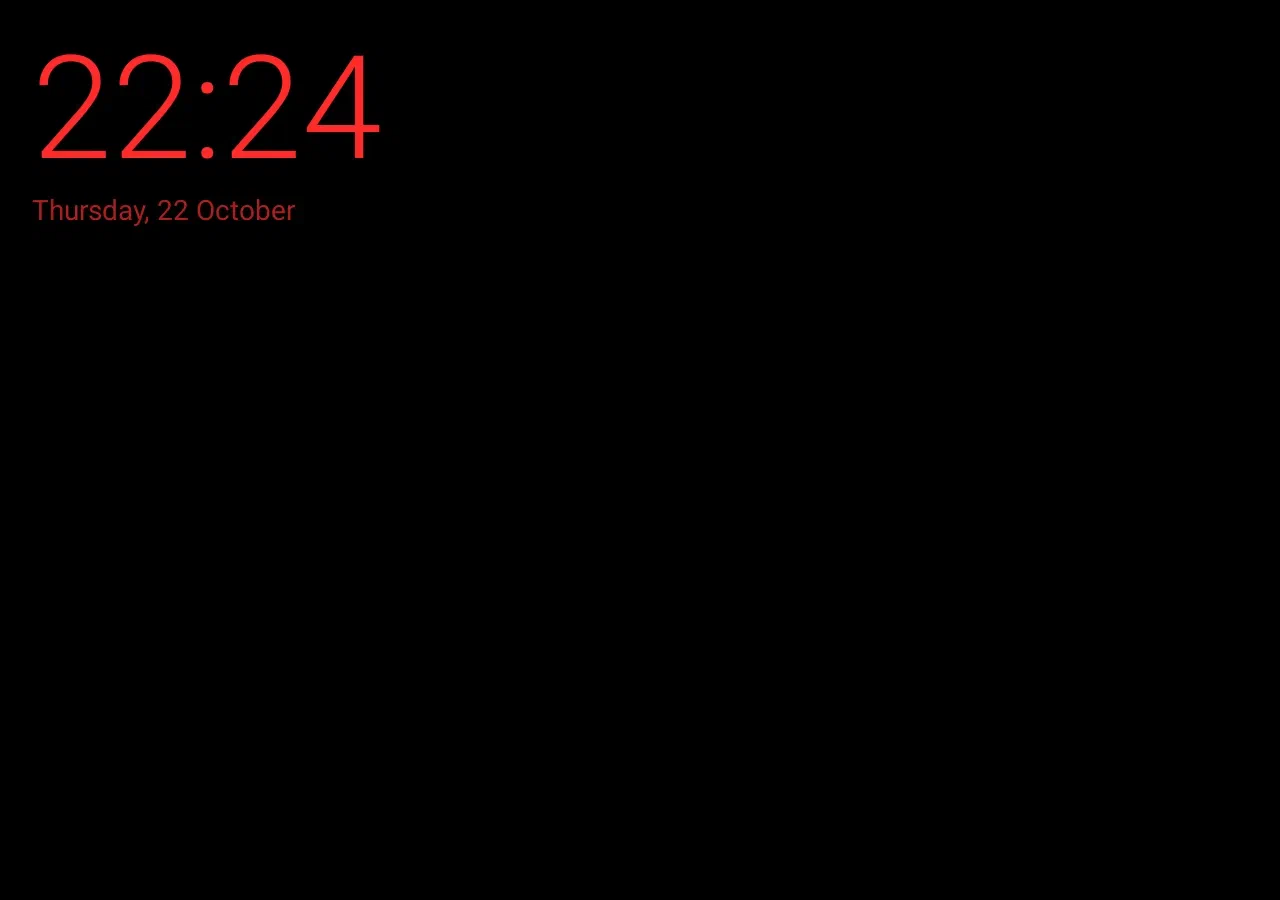
The screensaver itself depends on the time of day. By day it shows our photos with a slow Ken Burns move, in the morning and evening the sky with the clock and who’s where, and at night only a red clock on black at the lowest brightness the panel can do:

Tap the clock on the dashboard and you get the big clock, which comes in five faces:
Things in the sky#
The sky has visitors, flying behind the cards in the free strip above the header:
- Real aircraft. When a plane actually flies over the flat, a small plane with a contrail crosses the sky. Tap it and you get “SQ317 · Singapore Airlines · A359 · London → Singapore · 3,200 m up”.
- The ISS, during its real visible passes, on its real bearing: “International Space Station · about 420 km up · 7.7 km/s · visible until 19:42”.
- A hot-air balloon now and then. And about once in 2,000 minutes per tablet, something rare: a whale, a UFO, a dragon. Home Assistant counts who was in front of the tablet when it happened, and seven taps on the clock open a secret page with the tally.


Festivals come along too. Singapore’s six big ones come from Home Assistant: Chinese New Year lanterns and fireworks at midnight on all five tablets on the same second, Mid-Autumn, Deepavali, Hari Raya, National Day with the jets and the flag under a Chinook, and Christmas. The tablets work out the German and Canadian holidays themselves. Oktoberfest and Thanksgiving are covered.
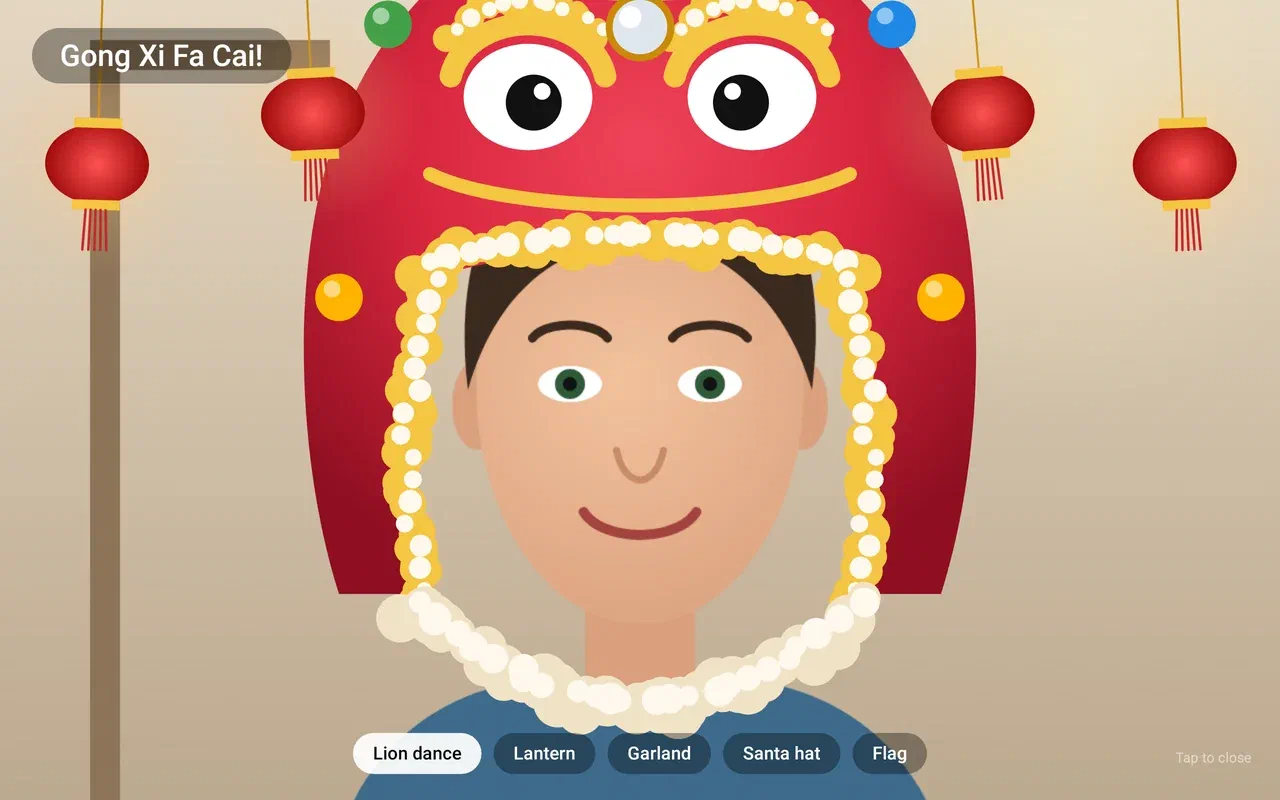
On festival days, stand still in front of a tablet for two seconds and it becomes a mirror with a festive mask on your face: a lion-dance head, a lantern hat, a Santa hat. Nothing is saved or sent.
The pixel house#


And then there’s the house map. It started as “show who’s in which room”, and now it’s a 240×162 pixel cut-through of our flat, drawn from Home Assistant’s live state on every frame. All five tablets draw the same frame at the same moment, and tapping a room opens its tab. What’s live:
- Lights, in their real colour and brightness: the cinema’s LED strip glows purple when it’s purple.
- People, in the room their presence sensor says, greyed out when nobody has seen them for a while. Whoever is in the office sits at the desk while its screen or light is on. In the bedroom you’re in bed once the sleep mat feels someone, in sleep mode, or after dark with the lights off.
- Odette, wherever she was last seen, walking or curled up.
- The aircons blowing while they cool, the blinds at their real position, the TVs showing a film or the music, the doors open or shut from their contact sensors, and the front door’s lock.
- The machines: washer, dishwasher, printer, purifiers, the amplifier, the hot tub and the ice bath.
- The sky: the real sun and moon (in its real phase) over the roof, the clouds from the forecast, and rain when the rain sensor on the roof says so.

Every machine shows while it runs: the washer drum turning, the dishwasher steaming, a page coming out of the printer, the purifiers’ rings, the KEFs pumping with the music, the garden wall being watered. When the doorbell rings, a bell rings over the front door for a minute and a half.
The flat downstairs is made up. It has two neighbours with a routine, their own cat, a robot vacuum the cat rides, and a party on Friday nights. One of them keeps losing the towel:


The first image at the top of this post is the “Build the house” screensaver. A builder puts up a stair tower, builds the flat floor by floor and switches the lights on. Then the family walks in through the front door to wherever the house map has them, and Odette trots in last.
Odds and ends#
The rest of the list, because a week is long:
- The doorbell wakes every tablet and shows the door full screen with live video, and tries to tell you who is at the door.
- Pong between two rooms. One court across two tablets, the ball crossing the seam, over a direct TCP link at 120 Hz.
- The Konami code (↑↑↓↓←→←→ B A) turns the whole house 8-bit for the day, with pixel fonts and a dithered screen on every tablet.
- House Wrapped: in December, the year at home as a story of top songs, doorbell rings, the busiest room and Odette’s favourite spot.
- What’s down: every tablet probes Wi-Fi, the router, DNS, the home server, Home Assistant and the internet itself, and when something’s out it shows a calm “Internet down (provider) · 12 min”.

- Health: the house’s own status, every wall tablet’s battery and version, and the Display test panel used for most of the clips in this post.
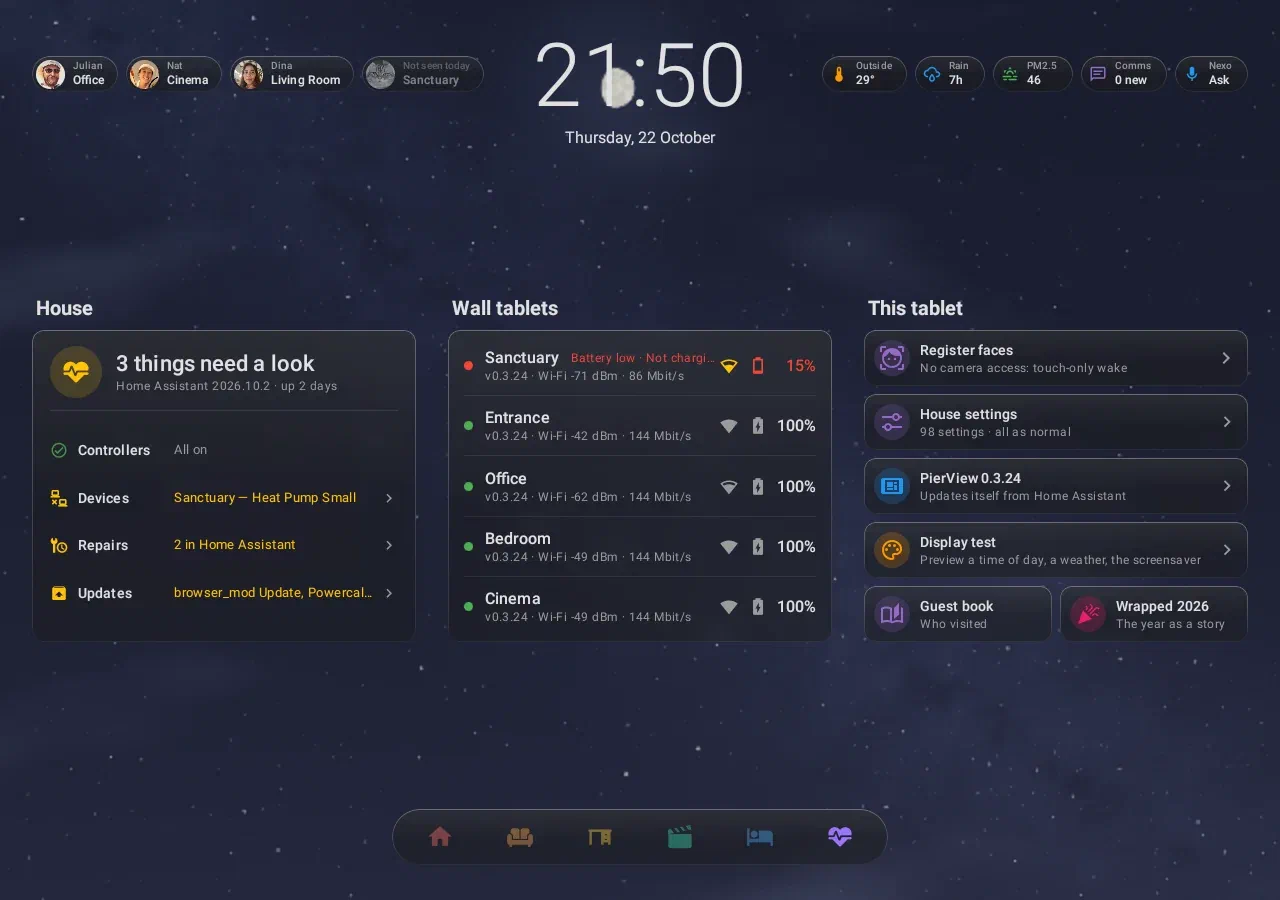
Under the hood#
For the curious, roughly how it hangs together:
- One WebSocket. The app subscribes to Home Assistant’s entities and renders everything natively in Compose. No WebView, no Lovelace, no HTML. Changes show at once and roll back if Home Assistant disagrees. History, forecasts and media browsing are ordinary WebSocket calls.
- Home Assistant is the backend for everything. Settings, the face list, the pets’ state, the call switchboard, announcements, the guest book and House Wrapped’s counters all live there, in YAML packages and a few small custom integrations, all in git. Each tablet registers itself like the companion app does, reports its battery, version and screen as sensors, and takes commands (screensaver, wake, update, doorbell) over its own WebSocket. Nothing leaves the house for that.
- The house runs on a small Kubernetes cluster, managed with GitOps, with Home Assistant as one workload among others. Code lives on a self-hosted Forgejo. Calls go through a self-hosted LiveKit, and the voice assistant through Home Assistant’s Assist pipeline to our own agent.
- CI and releases. Every change is a branch and a pull request, and it merges only on green CI for exactly that commit. A version tag builds and signs the APK and puts it next to a
version.jsonin Home Assistant’s web folder. The tablets check that file and install the update silently, as soon as nobody has touched them for a few minutes. “Deploy early, deploy often, all tablets” really is that easy once the tablets update themselves: 30 releases in a week. - Lesson learned on day three: Android builds are heavy. Four of them at once inside the cluster filled a node’s disk until it went NotReady, and Home Assistant went down with it. The builders now live in two standalone VMs on two different hypervisor hosts, well away from the house.
- The dev box is a VM with the JDK, the Android SDK and an Android emulator in Docker, behind noVNC, so I could watch the app being built in a browser.
- Tests that take pictures. Robolectric renders whole screens to PNG on the JVM: the dashboard, the sheets, the pets, the sky events, the pixel house. Every visual change came with screenshots for me to say “no, lower”. Most of the clips in this post are those same renders.
- Many hands. Claude Code worked with sub-agents in parallel git worktrees, each on a feature with its own PR (the builder’s stair tower, for one), while the main session kept the merge queue and the releases moving.
Cheap tablets, interesting problems#
The Redmi Pads were the hard part, not Android itself:
- The old kiosk browser had made itself device owner through the wrong component. That meant it couldn’t be removed without a factory reset, and I wasn’t wiping anything (“No! I am NOT wiping the tablet nor is fully staying! Fix it!”). So it’s now dormant: every feature off, never launched, and PierView is the home app.
- HyperOS blocks silent installs from anything that isn’t the store. The way around it is a hidden “system optimisation” switch in developer options, and the only way to make that switch appear is to tap “Reset to default values” five times quickly. Yes, really.
- Xiaomi blocks
adb install, so the very first install had to be pushed into Downloads and opened from there. Every update after that is the app installing itself. - One signing key to the next without uninstalling: an uninstall would have lost the faces, so the release key arrived through APK signature-scheme v3.1 key rotation.
- The cameras hang sideways, so the picture is turned upright on the GPU before it reaches the encoder (the same pass feeds Protect).
- Warm tablets step their camera stream down by themselves, and a tablet switched off with the power button is “asleep” as far as Android’s network is concerned. That one isn’t a bug.
None of this would have happened in a week if I’d had to learn Android first. I didn’t. I described what I wanted, looked at screenshots, said “no, lower”, “why is there a ladder and not stairs”, “the bedroom is too empty”, and the next build was on the wall.
That’s what leftover tokens are for.
The clips are animated WebP rather than GIF: full colour and a fraction of the size. They play anywhere an image plays. Most of the dashboard clips come from an Android emulator running the real app against our real Home Assistant. The pixel-house, pet and sky clips are rendered frame by frame from the app’s own drawing code.